Guide to setup
Presumptions for the setup:
- The drive is properly mounted Mounting Example.
- Protective earth is connected Example for system earthing.
- Mains supply voltage is connected Mains supply connection (X12).
- Auxiliary supply voltage is connected Logic supply voltage 24 VDC (X13).
- String cables are connected Drive String Connection.
- Safety Controller and PLC I/Os are connected I/O Connection.
- EtherCAT Master is connected Motion Bus Interface (X10/X11).
- Service PC is connected Service Interface (X18).
System addresses
To tune and configure the MKD system, it is recommended to connect WorkBench to the MKD system.
The MKD system can be accessed through two different physical communication channels:
- Ethernet Service Port (X18) on the MKD-C unit Service Interface (X18)
- EtherCAT Bus In port (X10) on the MKD-C unit Motion Bus Interface (X10/X11)
Both communication channels allow a single point of connect to access the MKD-C itself and all drives (MKD-N’s, AKD-Ns) that are connected to this MKD-C unit.
The unique MKD-C MAC address is pre-defined by the manufacturer (see nameplate). Every MKD-N or AKD-N drive axis has a unique MAC address as well.
The MKD-C service port X18 supports Auto-IP and Static IP addressing.
Auto-IP:
All network devices that are connected receive a unique IP address in the range 169.254.x.y.
To configure this, follow the next steps:
- Set rotary switch S1 to "0" Rotary Switch (S1), Setting IP address. Power up the the MKD-C.
- By default, the network adapter of your windows PC that is used to connect to the MKD-C should be configured for automatic IP assignment. If automatic assignment is not default, you need to reconfigure the TCT/IP adapter:
Open Network & Internet settings -> Ethernet -> Change adapter options -> Right click on network adapter -> Select TCP/IP -> Properties -> tab General: set both entries to "automatically". Reboot the PC. - Connect PC network adapter with Ethernet cable point to point to MKD-C service interface (RJ45 connector X18).
- If the link LED on X18 is green/blinking, the connection is working.
- Wait until the network adapter has finished the AUTO-IP assignment. This can be detected by checking the 7 segment display. Once the MKD-C has received an new IP address it will be shown in the display.
Static IP:
The MKD-C IP address can be set with the S1 rotary switch Rotary Switch (S1), Setting IP address.
WorkBench looks for IP address in the subnet to detect devices in the LAN and start communication. All connected devices must have static IP addresses. Refer to the WorkBench Online Help for more information.
The EtherCAT node address is assigned automatically by the EtherCAT master. Refer to WorkBench Online Help and EtherCAT manual for more information.
System Setup
Simple access to the system can be achieved by connecting a laptop or Service PC to the MKD-C service port X18 with a standard Ethernet Patch cable. All drives that are connected to the MKD-C can be accessed via X18.
The MKD-C forwards the Ethernet packets to all connected drives and returns the response packets. Every connected axis has a unique MAC address and can be viewed as standalone Ethernet device (client).
Example Auto-IP system
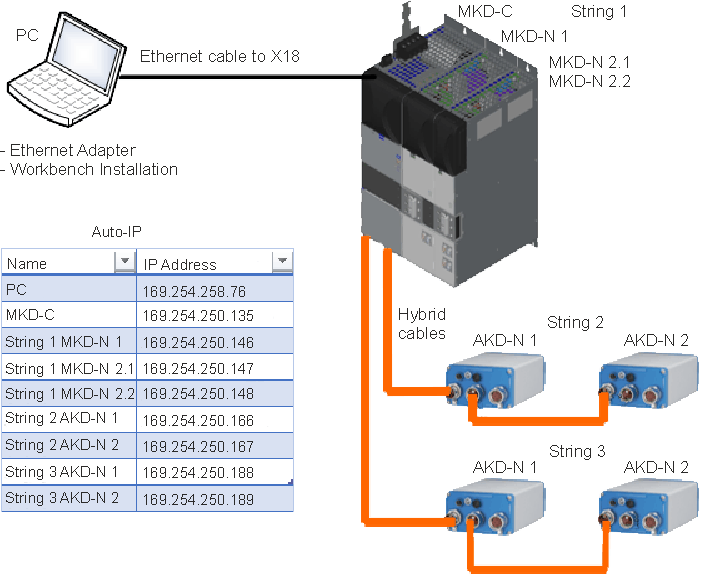
Refer to the WorkBench Online Help for more information.


